


Getting started
The Photographer Account is one place for all your clients’ galleries. You start with 30 days and 1 GB, no card details required.
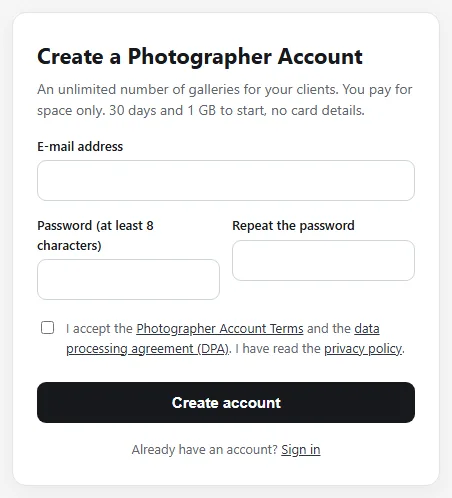
- Open the sign-up page and enter your e-mail address and a password (at least 8 characters).
- Accept the Terms and the data processing agreement (DPA) and click Create account.
- Open the message from Fotillo and click Activate account, then confirm with the same button on the page that opens. The link works for 48 hours.
- Sign in. From now on your panel is at pro.fotillo.com.
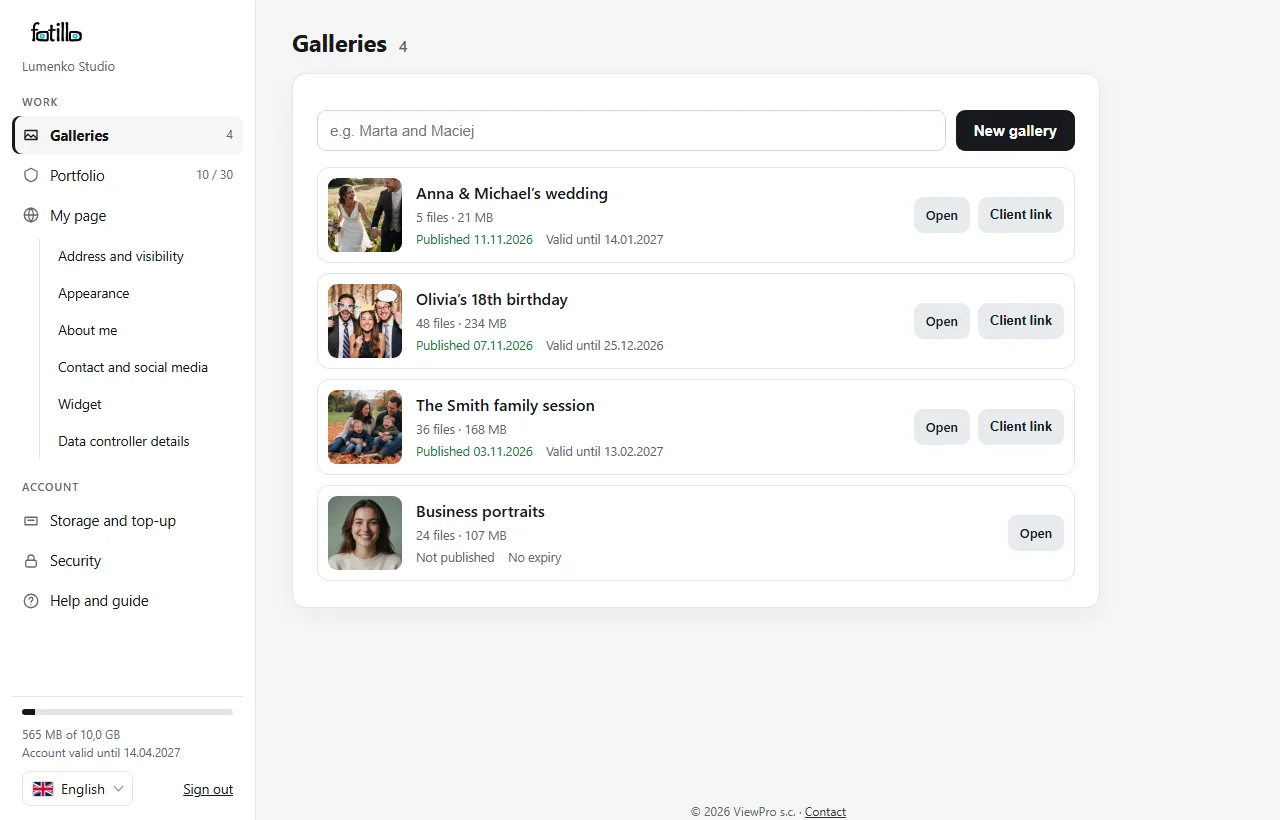
After signing in you will see the menu on the left: Galleries, Portfolio, My page and, under Account, Storage and top-up and Security. The bottom of the menu shows how much space you use and until when your account is valid.
Galleries
Each job is a separate gallery: a wedding, a family session, a party. The number of galleries is unlimited — the only limit is your account’s shared storage.
New gallery
- On the Galleries screen type a name, e.g. “Martha & Max”, and click New gallery.
- The gallery is created unpublished — your client cannot see it yet, so you can add photos at your own pace.
Adding photos
In the gallery open the Photos tab and click Add photos. You can select many files at once. JPG, PNG, WebP and MP4 or MOV videos are supported (videos up to 500 MB).
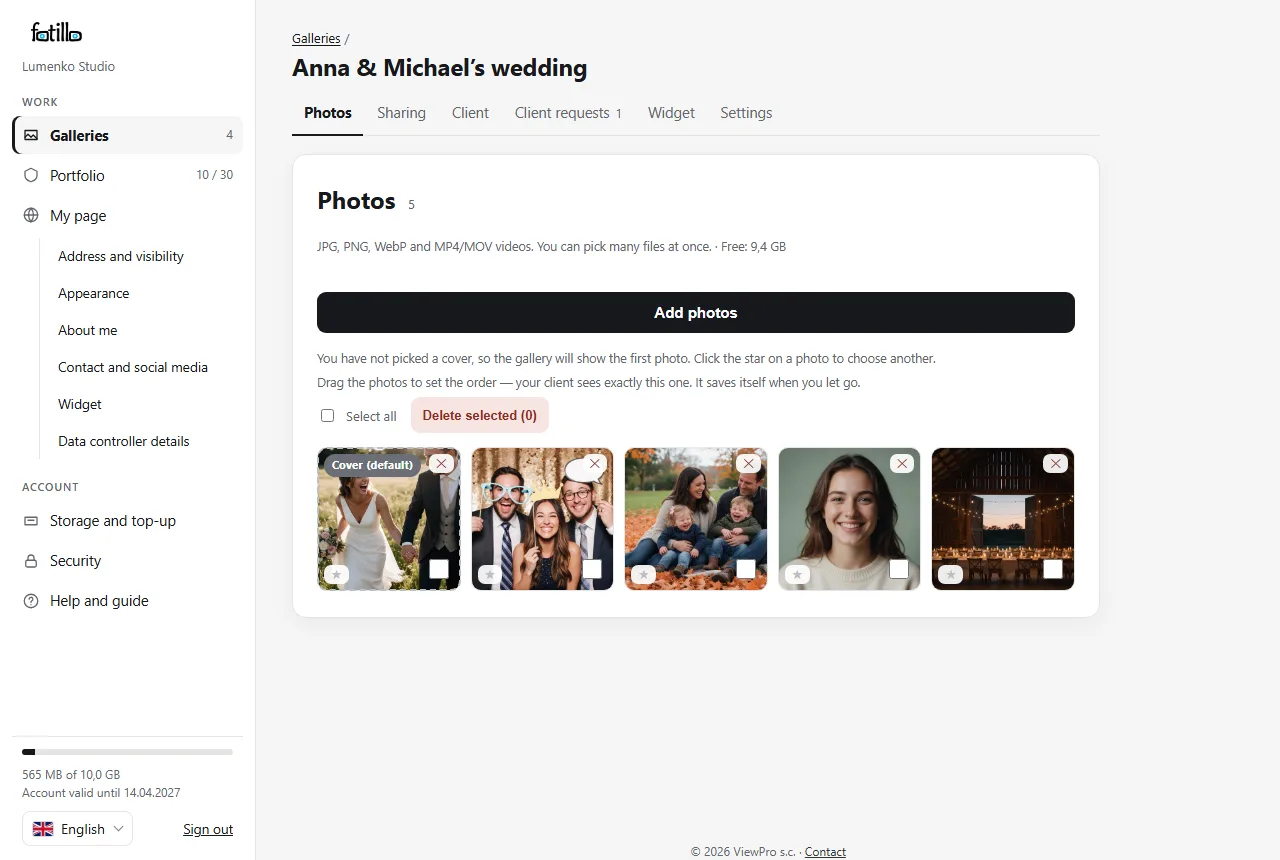
- Cover — click the star on the photo your client should see first, full screen with the gallery name. If you do not choose one, the first photo becomes the cover.
- Order — drag photos with the mouse or your finger. The order saves itself.
- Deleting — the cross on a photo deletes it. To delete several, tick them (or Select all) and click Delete selected.
Sharing with your client
In the Sharing tab you decide when and for how long your client can see the photos.
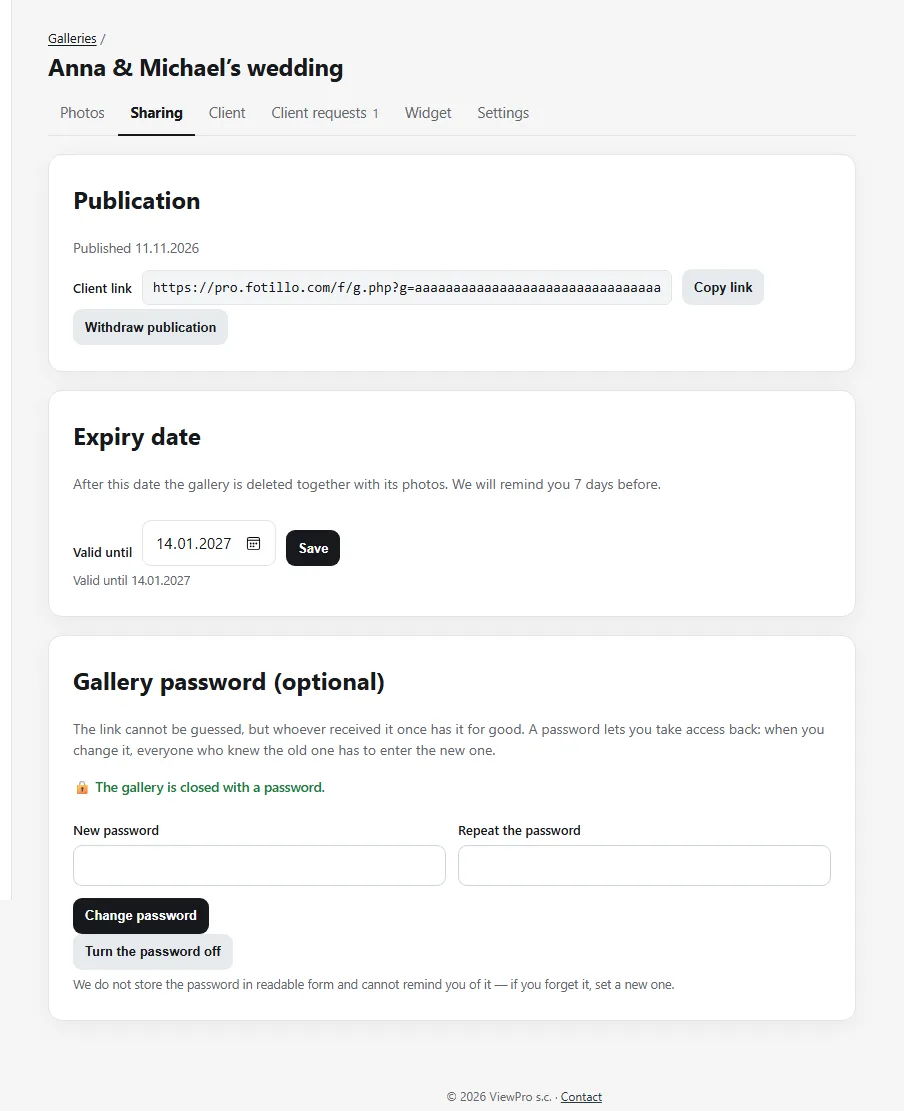
- Publishing — click Publish the gallery. The Client link appears with a Copy link button. The link is long and impossible to guess. Withdraw publication closes the gallery immediately.
- Expiry date — set the day until which the gallery works (up to 2 years). After that date the gallery is deleted together with its photos, and you get a reminder 7 days before. An empty field means no expiry date.
- Gallery password — optional, at least 6 characters. When you change the password, everyone who knew the old one has to enter the new one. We do not store the password in readable form and cannot remind you of it.
What your client sees
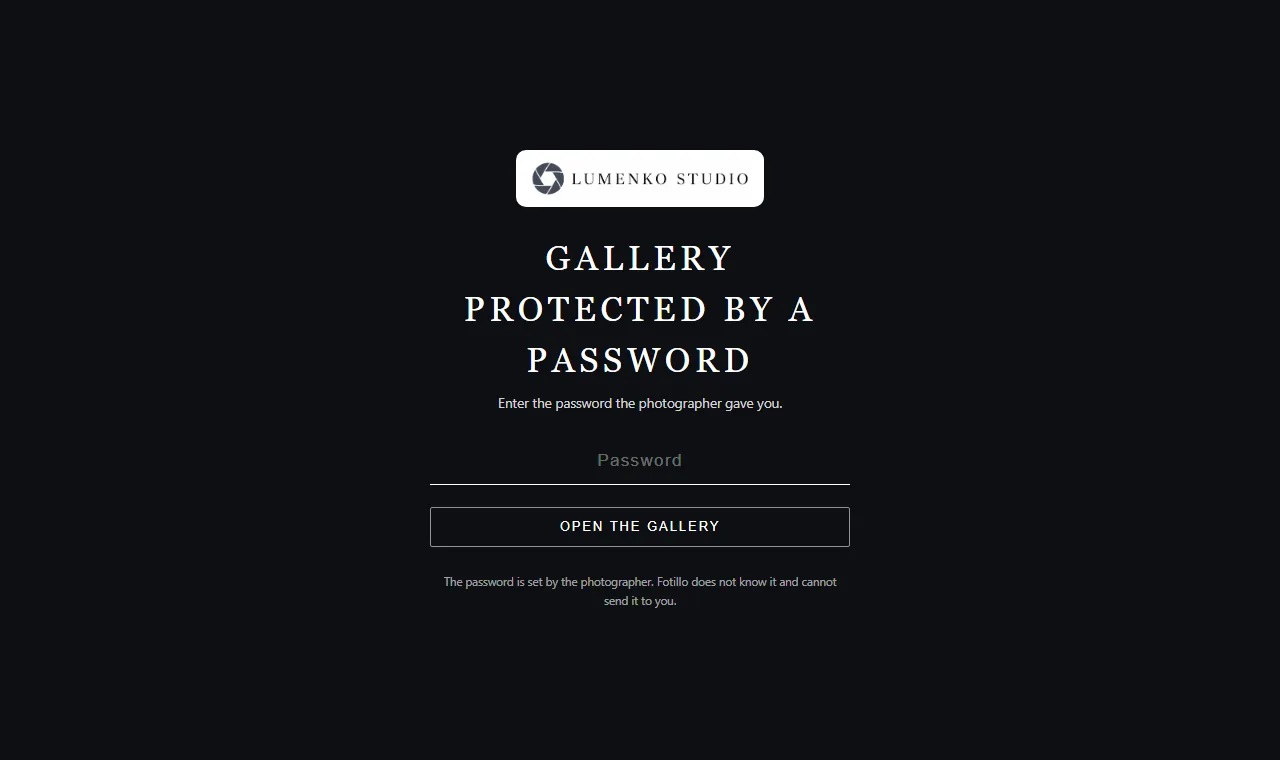
Your client opens the link. If the gallery has a password, they first see a screen with your logo and a password field.
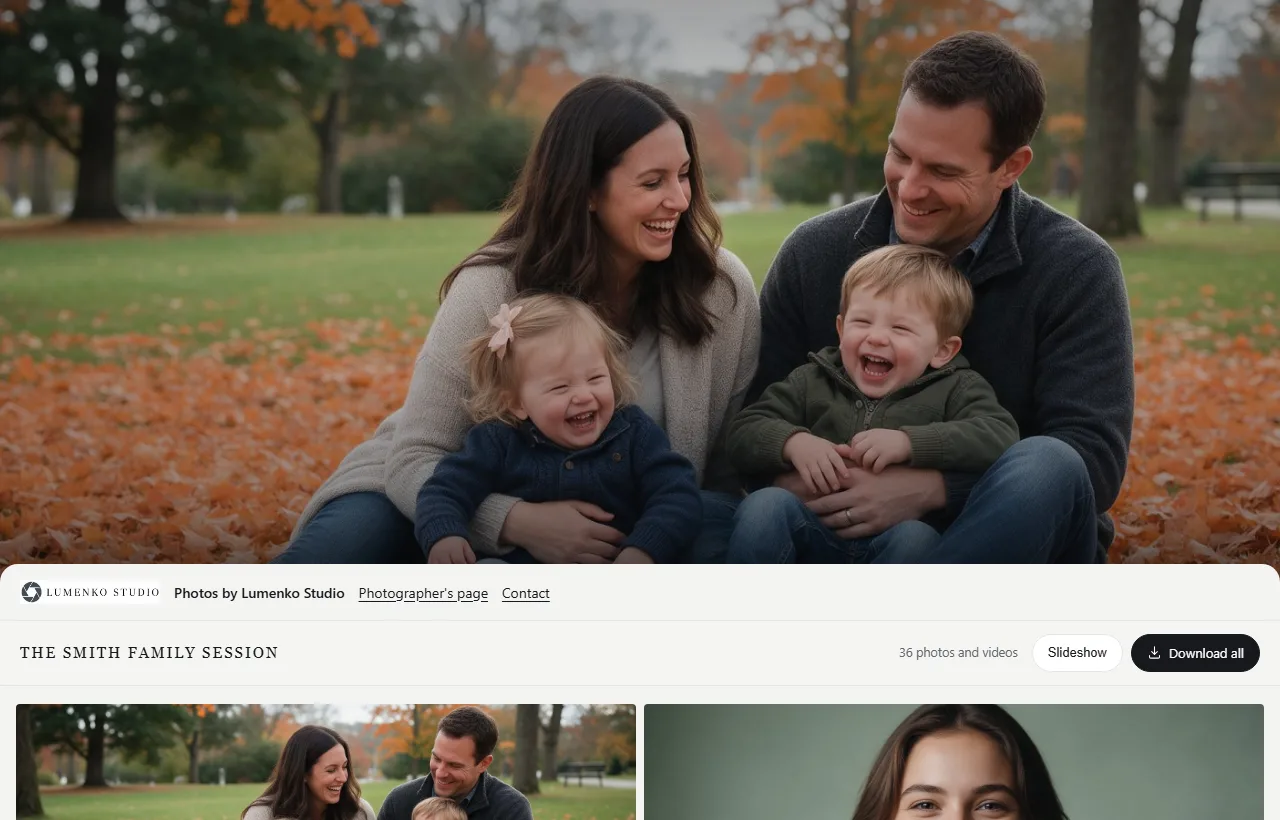
After entering the password they see the cover full screen and, below it, all photos, a slideshow and download buttons.
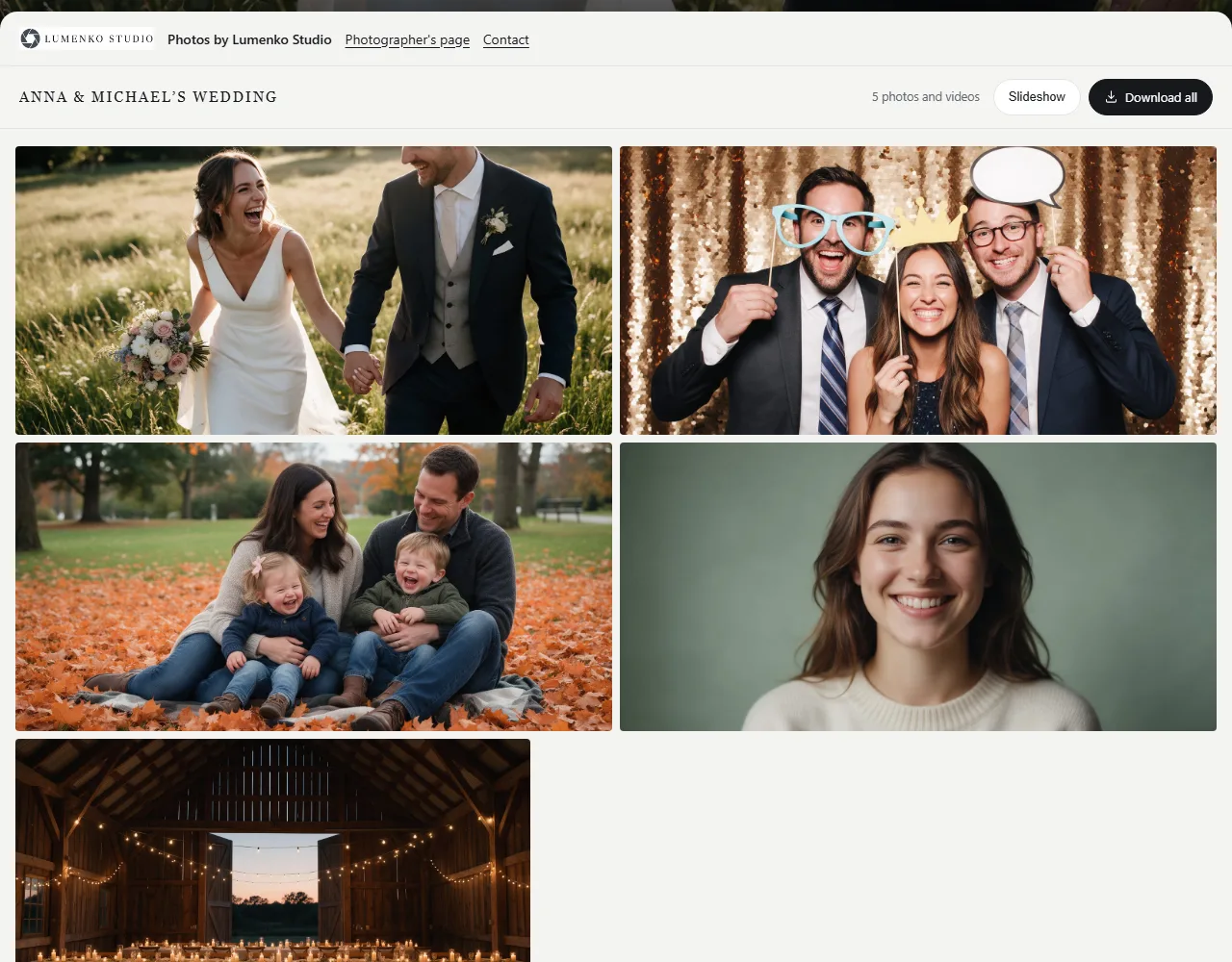
Above the photos there is a bar “Photos: your studio name” with links to your page and contact details. On every photo the client can ask for it to be removed (a GDPR right), and the footer shows the data controller’s details.
E-mail to your client
In the Client tab you save your client’s e-mail address and message language, then send them the gallery link straight from the panel.
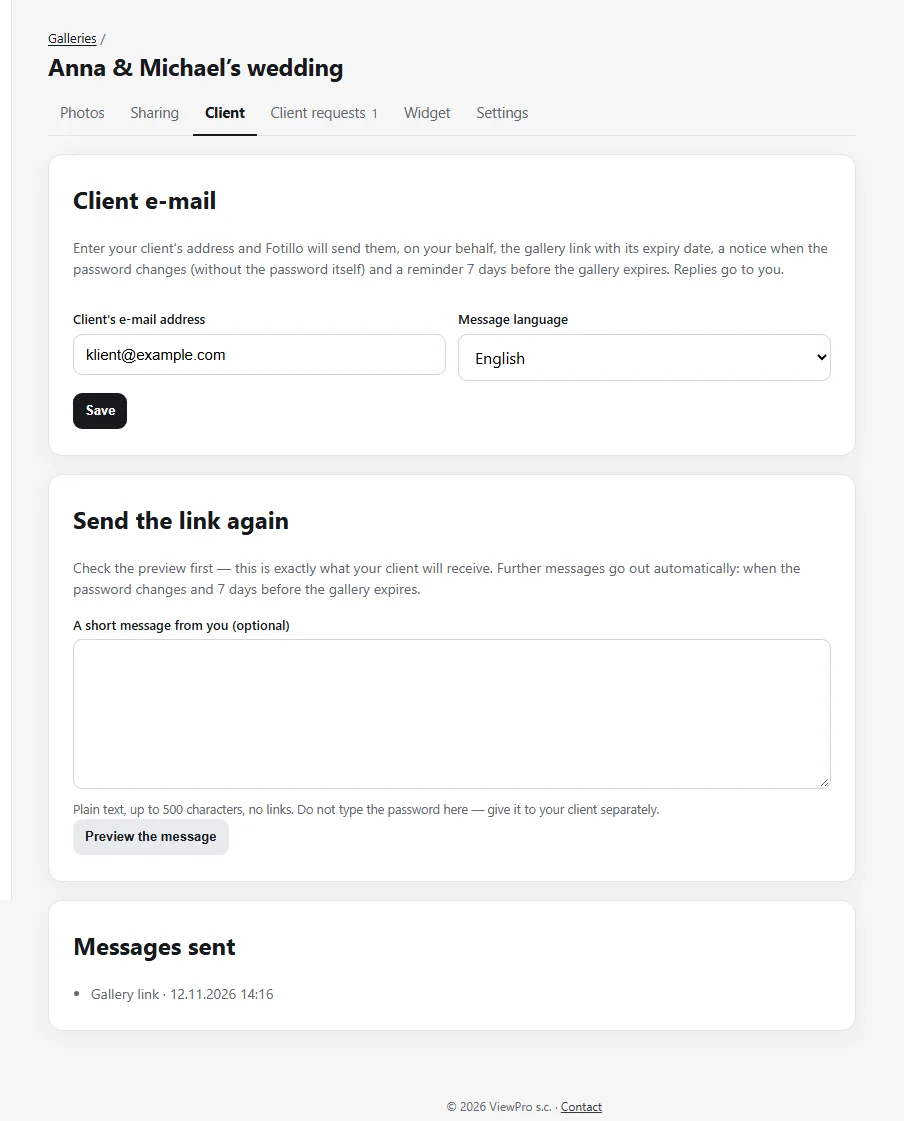
- Enter the Client’s e-mail address, choose the Message language and click Save.
- Optionally add a short note from you (plain text, up to 500 characters).
- Click Preview the message — you see exactly what your client will receive.
- Click Send.
After that the system writes on its own: after a password change (without the password in the message) and 7 days before the gallery expires, reminding the client to download the photos. Your client’s replies go to your address. The client can unsubscribe with one click.
Photo removal requests
If a client or a person in a photo asks for it to be removed, the request appears in the Client requests tab — with a name and a reason. The number of new requests is shown next to the tab name.
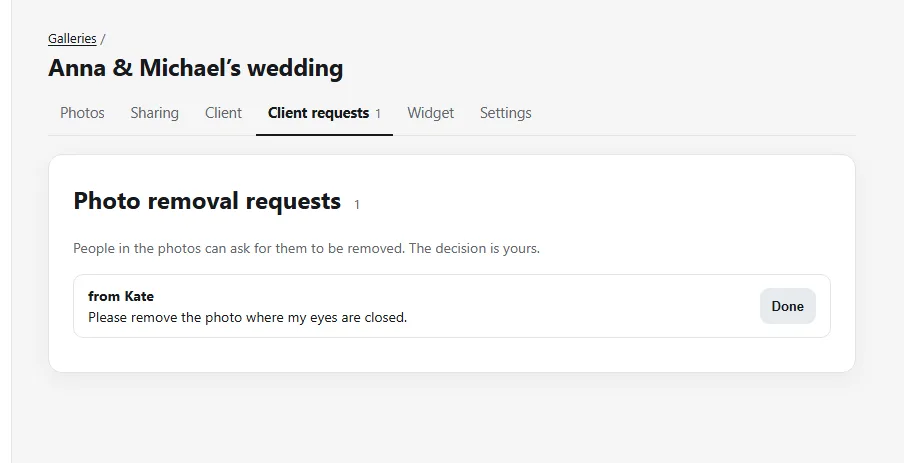
The decision is yours. If you agree, delete the photo in the Photos tab and then click Done next to the request.
Gallery settings and widget
In the Settings tab you can rename the gallery and decide what your client may do:
- Let the client download single photos (on by default) — when switched off, the client views the photos in a preview version and the originals stay with you,
- Let the client download the whole gallery as one file — a ZIP archive (off by default),
- Show this gallery on my galleries page — the gallery appears on your public page (the cover is visible to everyone, the photos stay behind the password),
- Show the photographer in the gallery — a bar with your logo and name; switch it off when you shoot for another studio.
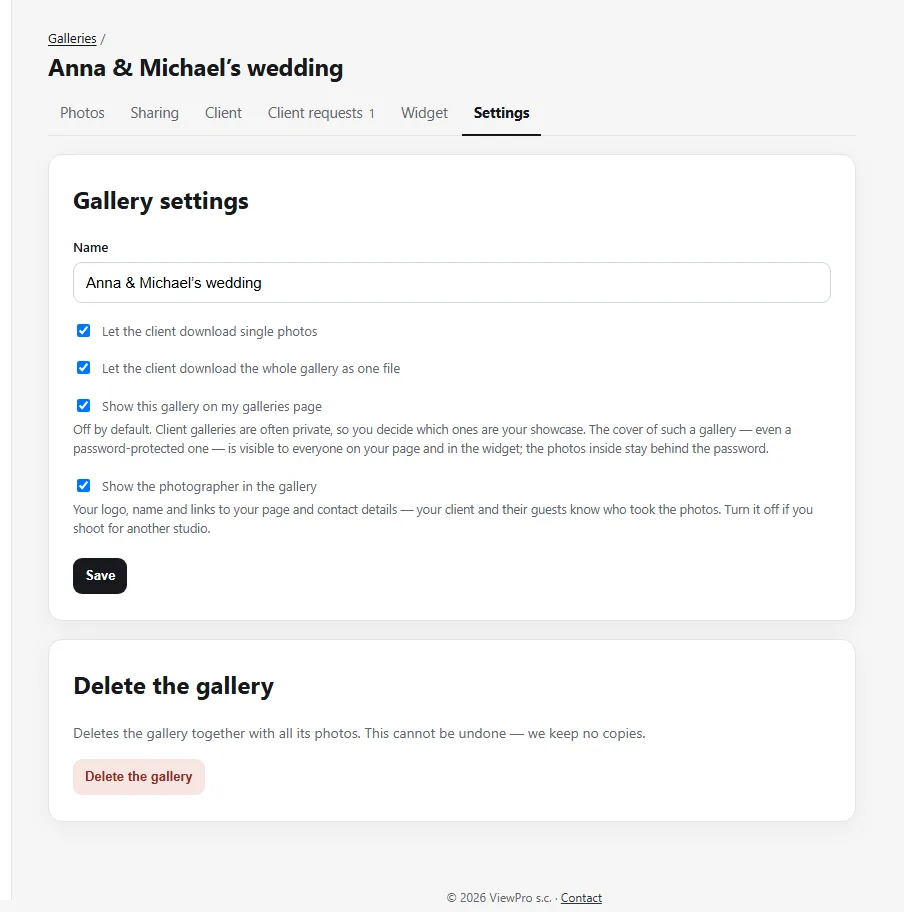
At the bottom there is Delete the gallery — it deletes the gallery with all its photos, permanently.
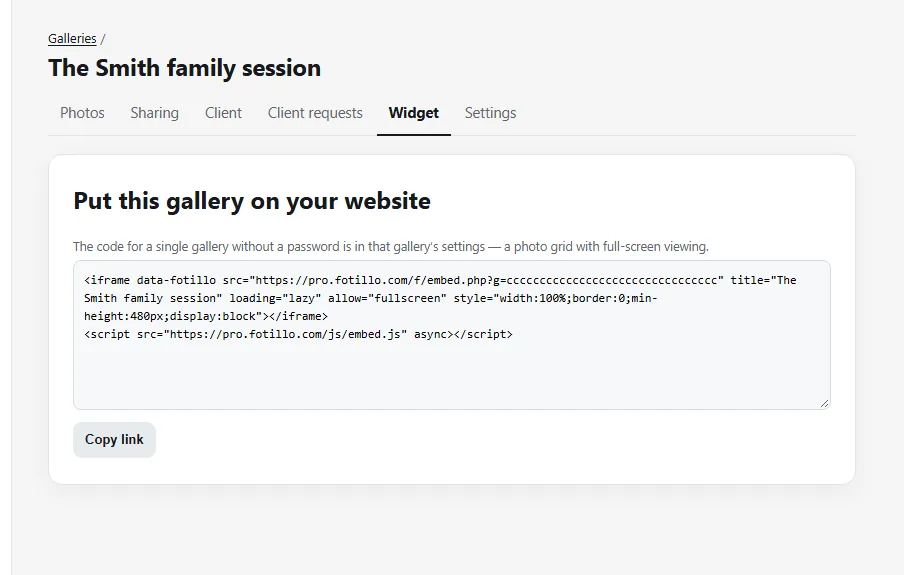
The Widget tab gives you a code to place a gallery without a password on your own website.
My galleries page
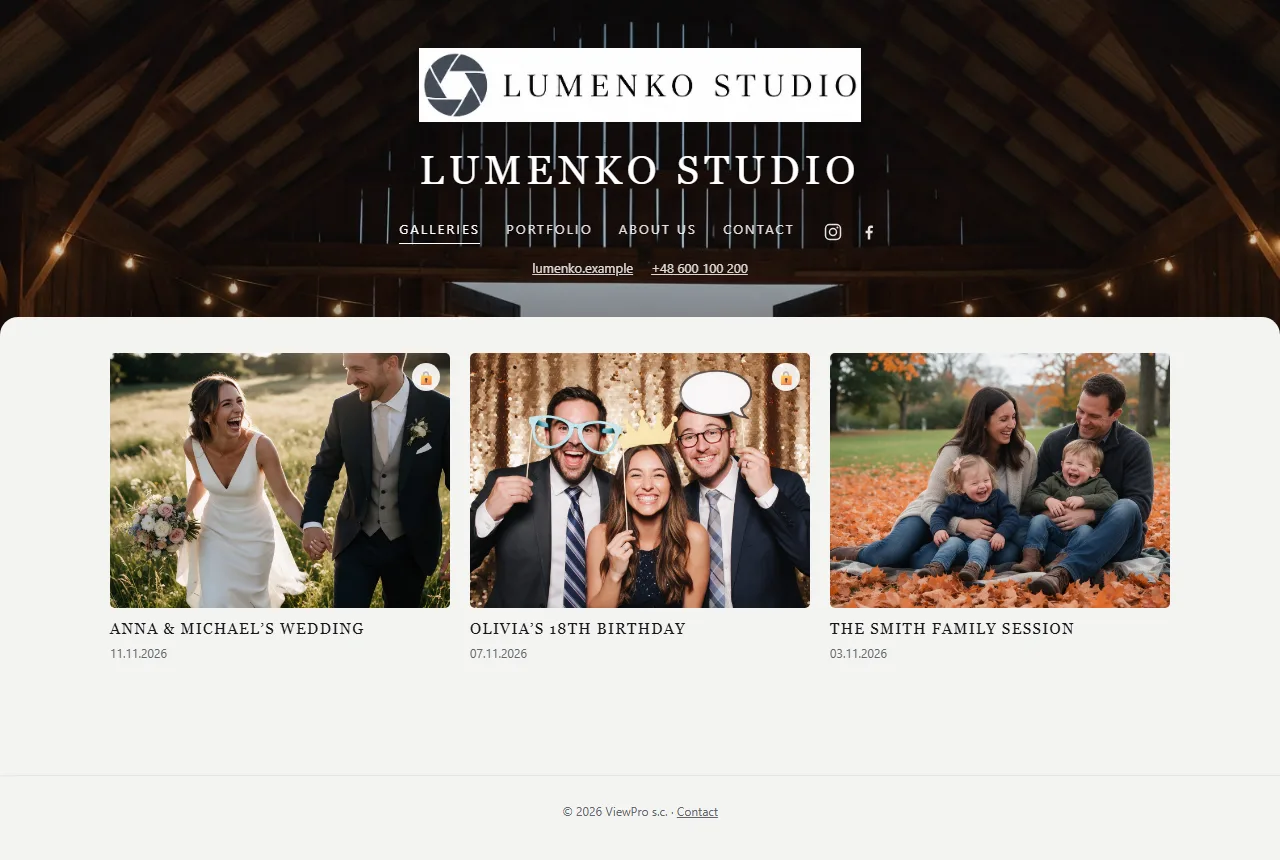
Every account can have a public page at pro.fotillo.com/f/your-name/ — with your logo, a background photo, galleries, portfolio, a description and contact details. This is what a finished page looks like:
Address and visibility
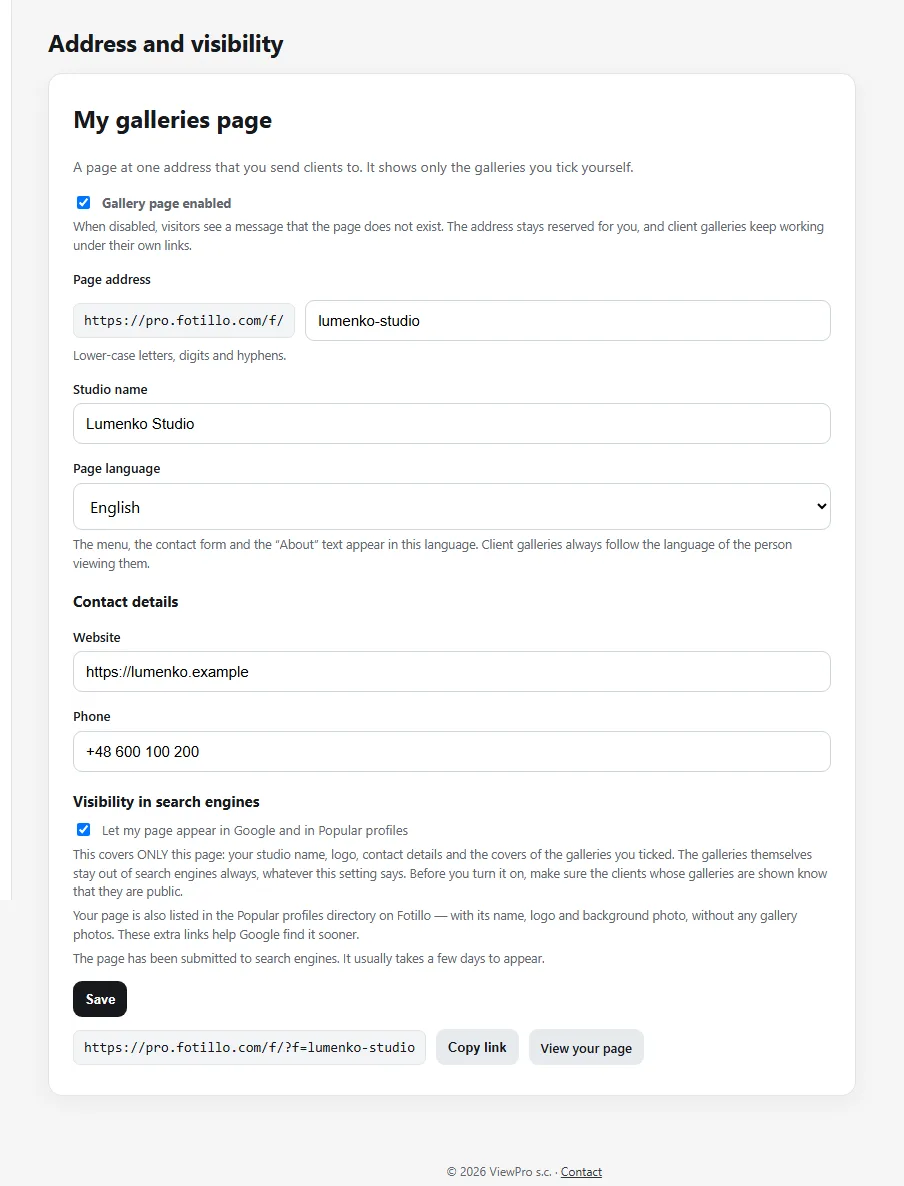
- Enter the Page address (lowercase letters, digits and hyphens). The panel checks straight away whether it is free.
- Fill in the Studio name, Page language, your website address and phone number — clients can call you with one tap.
- Tick Gallery page enabled.
- If you want to be found in Google, tick Let my page appear in Google and in Popular profiles. Your page will also be listed in Popular profiles — with its name, logo and background photo, without any gallery photos.
Appearance
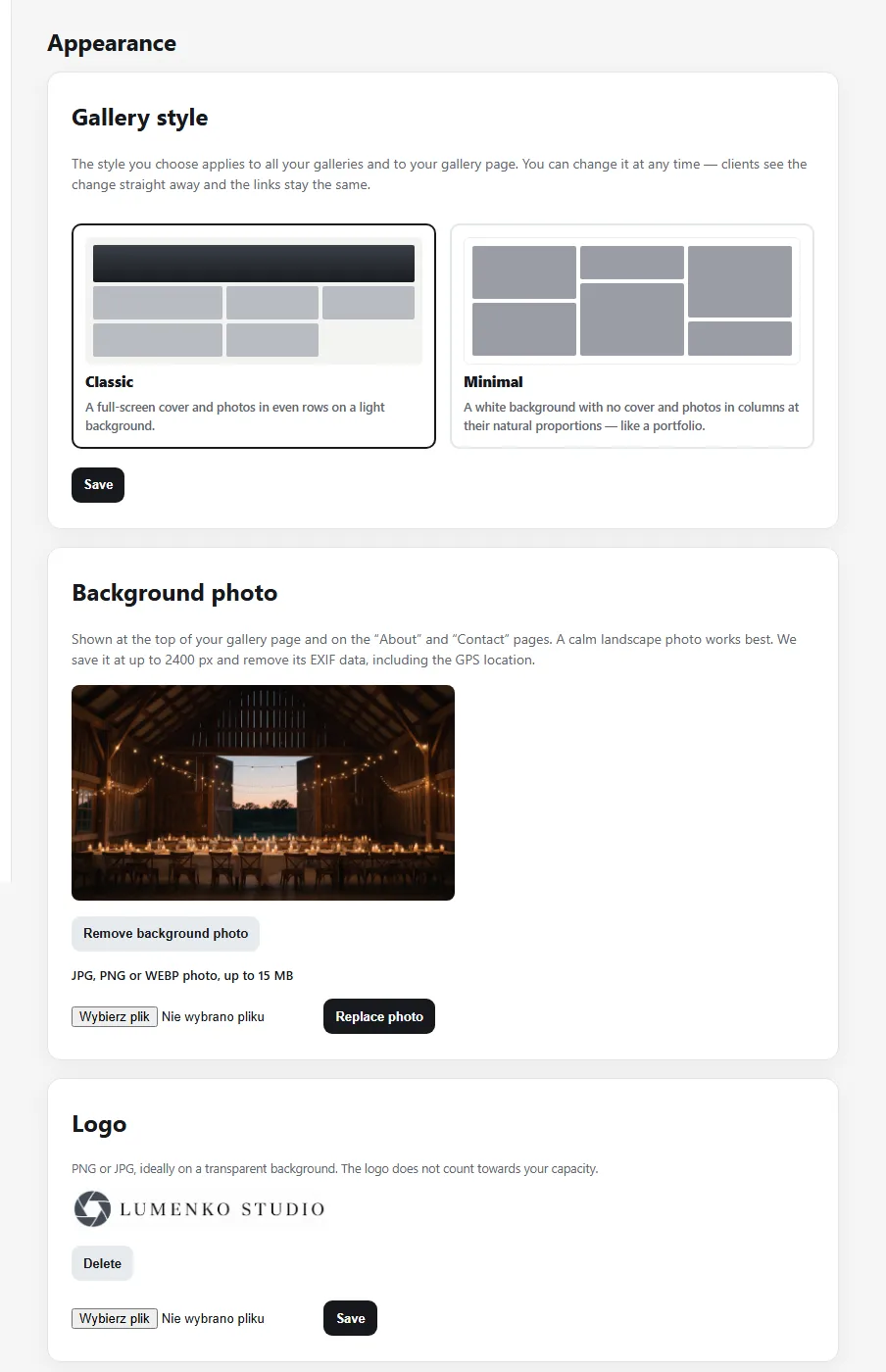
Choose a theme for the page and all galleries: Classic (full-screen cover, even rows) or Minimal (white background, photos in their natural proportions). Add a Logo (up to 2 MB, does not count towards your storage) and a Background photo (up to 15 MB — we save it without EXIF and GPS data).
About me
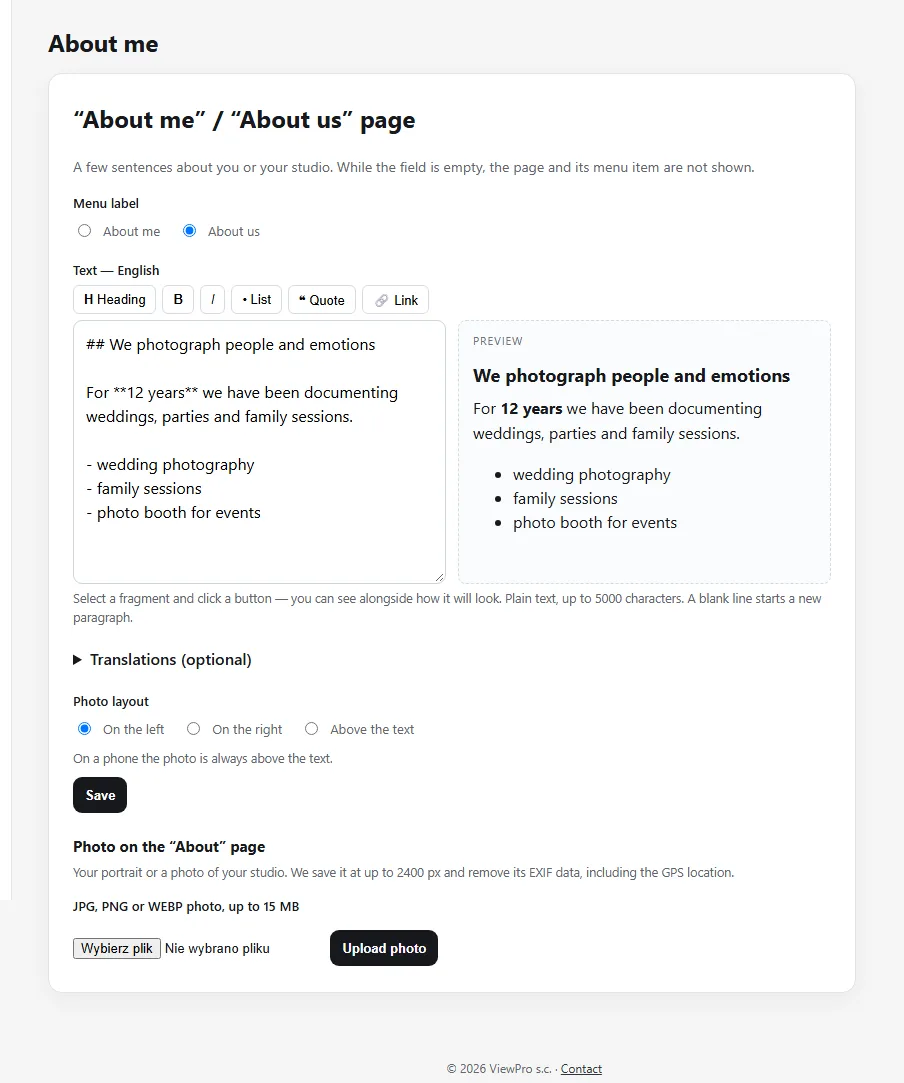
Write a few sentences about yourself or your studio. The buttons above the field add a heading, bold, italics, a list, a quote and a link — no HTML needed, with a live preview. You can add a photo, choose where it goes and add translations of the text.
Contact and social media
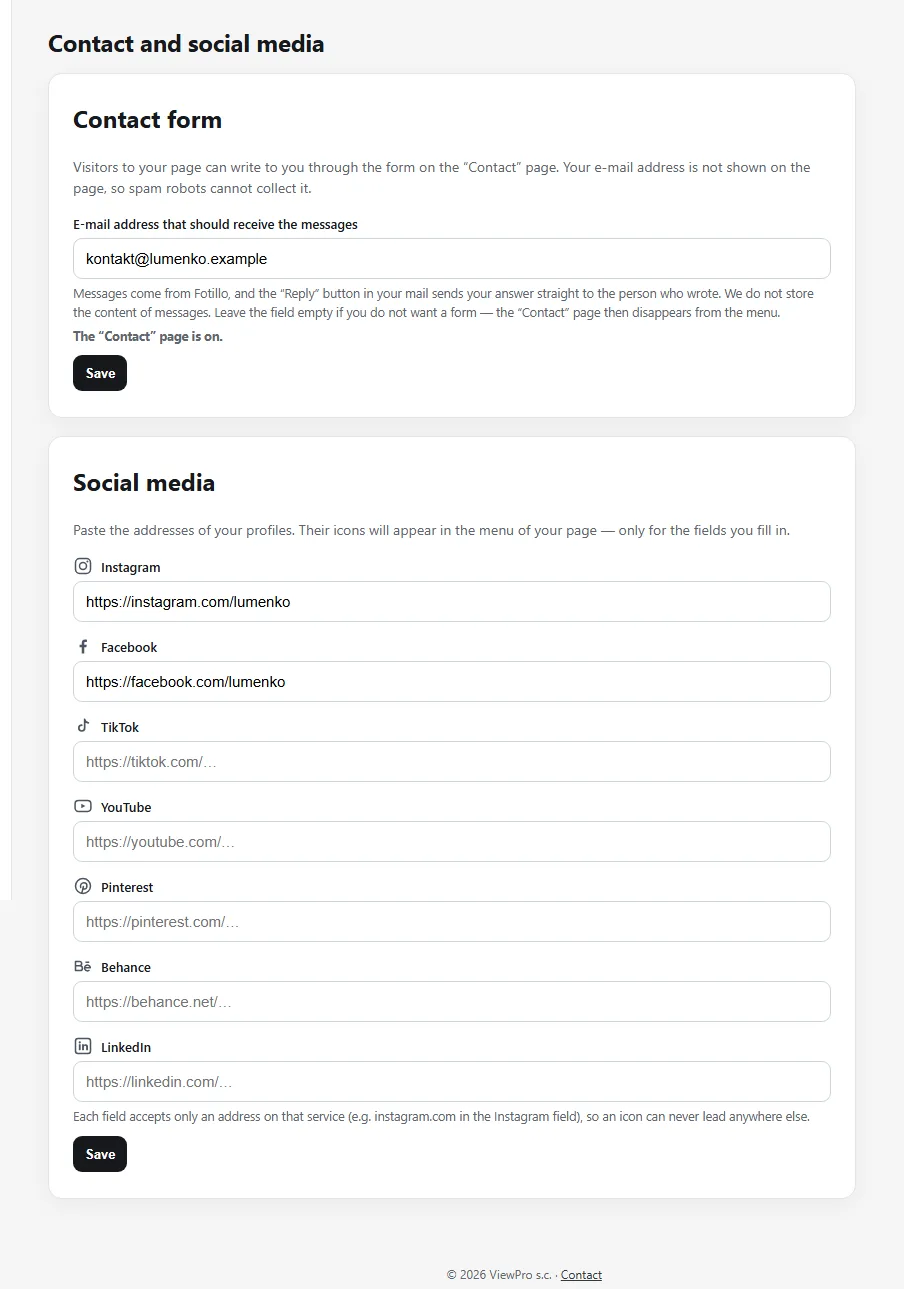
Enter the address where messages from the contact form should arrive — the address itself is not shown on the page. Add your social media profiles: they appear as icons in the page menu.
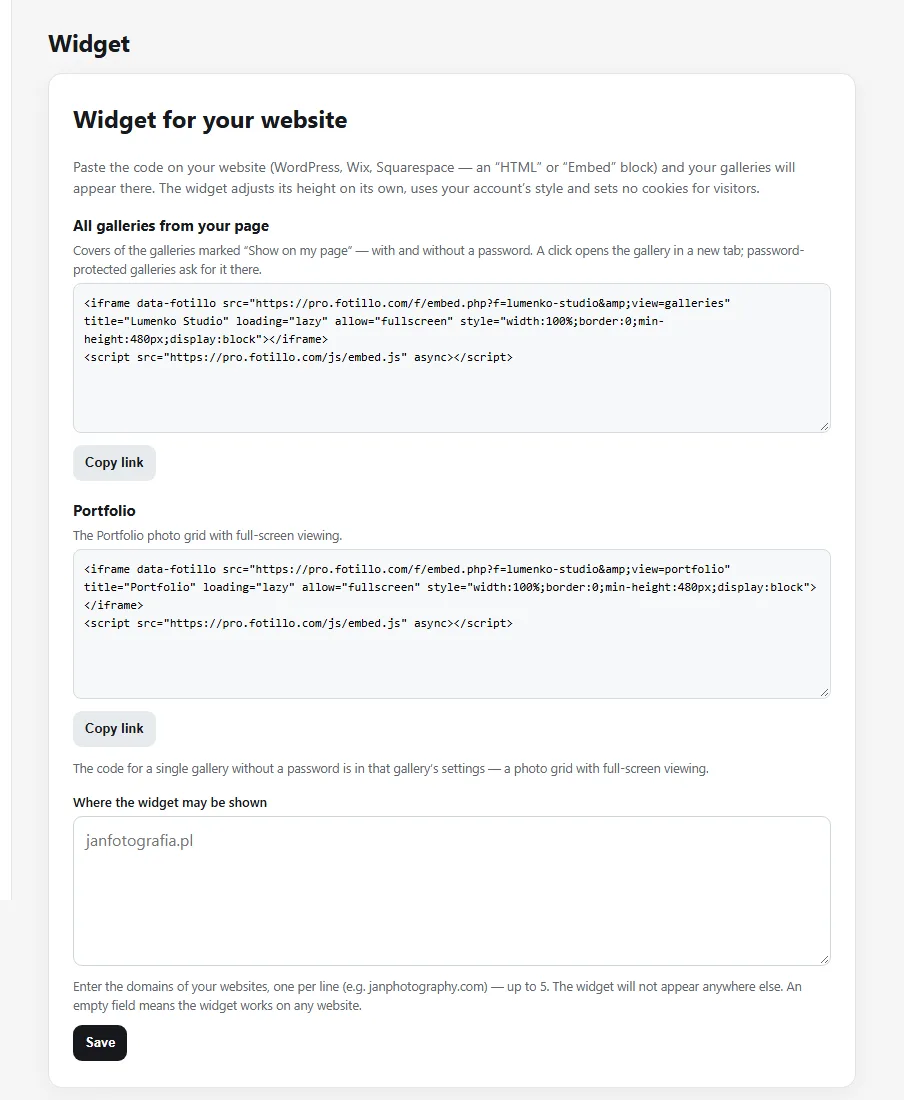
Widget for your website
Copy the code and paste it into your website: it shows all galleries marked “on my page” or your Portfolio. You can limit it to your own domains.
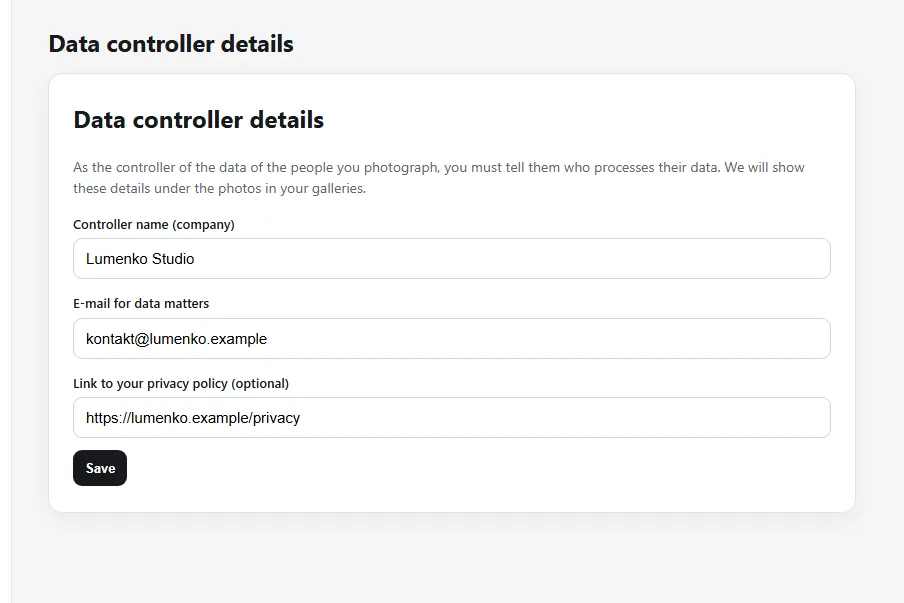
Data controller details
The photographer is the data controller for the people in the photos. Enter your company name and an e-mail address for data matters — we show them to clients in the footer of every gallery.
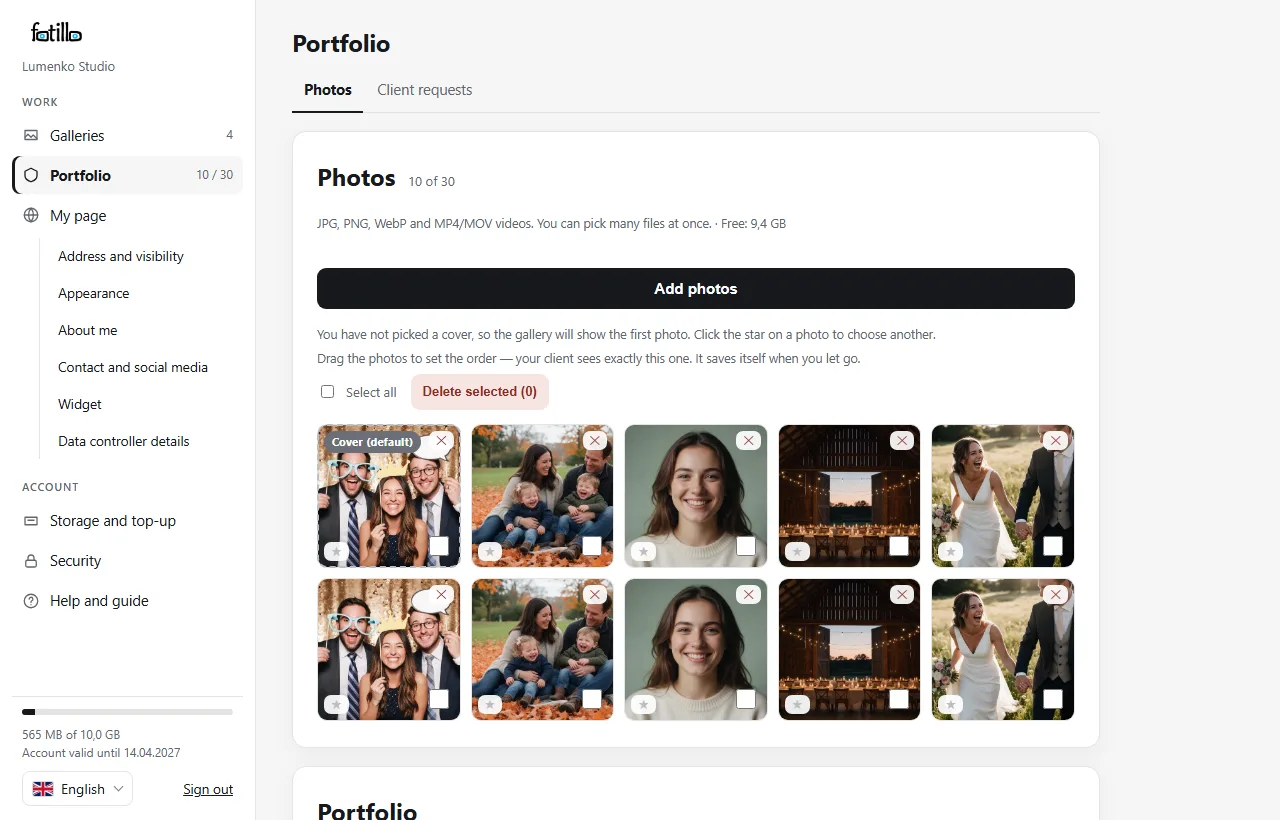
Portfolio
The Portfolio is a permanent gallery of your best photos — up to 30 files, no password and no expiry date, valid as long as your account. It appears in your page menu once you add the first photos.
Storage and top-up
Storage is shared by all galleries. You extend and enlarge your account with a top-up code bought in the Fotillo shop (packages from 2 to 100 GB, each for half a year).
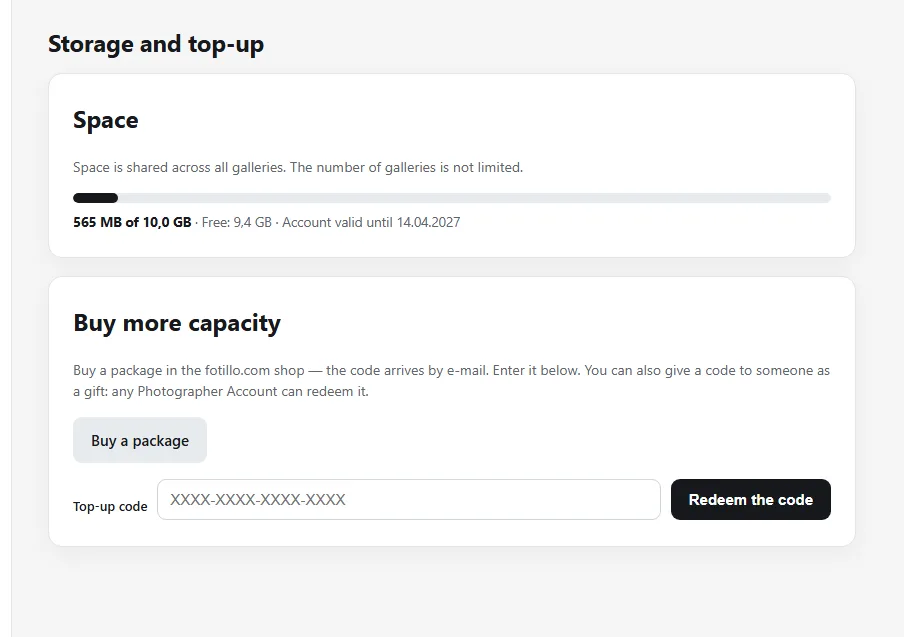
- Click Buy a package and complete the purchase in the shop — the code arrives by e-mail.
- Enter it in the Top-up code field (16 characters, e.g. XXXX-XXXX-XXXX-XXXX) and click Redeem the code.
- With your next code you choose: More space (larger storage) or More time (same storage, longer validity). Before choosing you see the exact storage and date.
When your account is about to expire
You get e-mails 14 and 3 days before the end of validity. After that a one-month grace period starts: clients can still view the galleries and you can download photos, but you cannot add new ones. After the grace period we send a message with the date the files will be deleted — at least 30 days later — and a reminder a week before. Topping up during this time stops the deletion.
Security
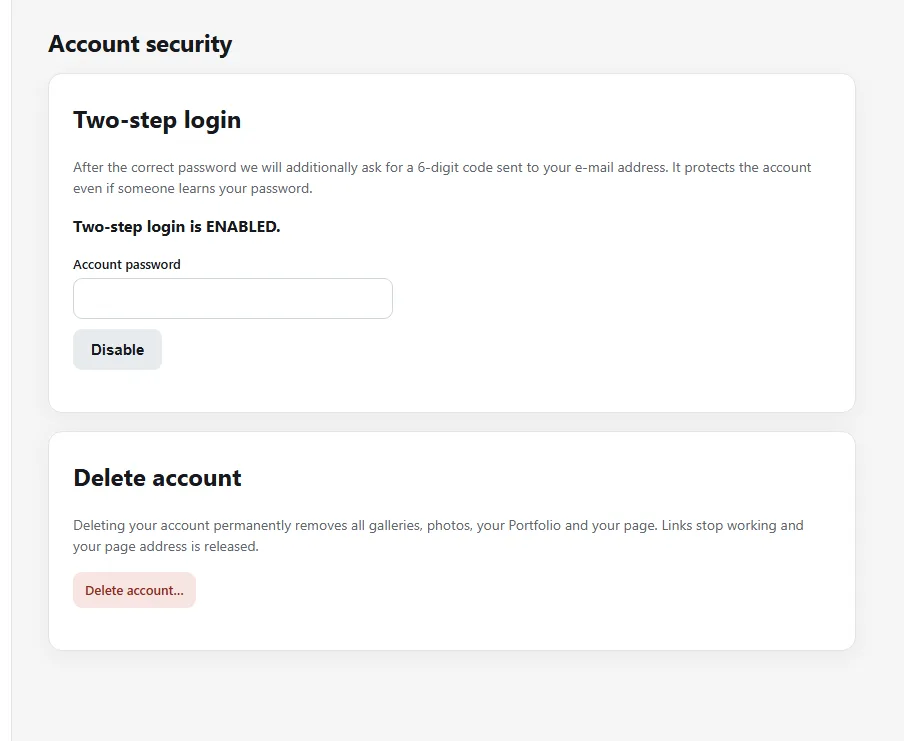
- Two-step login — once switched on, you enter a 6-digit code from an e-mail every time you sign in. You can remember the browser for 30 days. Switching it off requires your account password.
- Password — if you have forgotten it, click Forgotten your password? on the sign-in screen; the link to set a new one works for 60 minutes.
- Delete account — deletes all galleries, the Portfolio and your page; your page address is released. You confirm with your password and by typing the word DELETE.
Frequently asked questions
How many galleries can I create?
As many as you like. The only limit is your account’s shared storage.
Does my client need an account?
No. Your client opens the link (and enters the password, if you set one) — no sign-up and no app.
What if my client loses the password?
Set a new password in the Sharing tab and give it to your client. The old one cannot be read.
Are my clients’ galleries visible in Google?
No, never. Only your galleries page can appear in search engines — and only if you switch that on.
Are the photos safe?
Files are encrypted before they reach storage. The gallery link is impossible to guess, and a password locks access even further.